i hope someone reupload this to mega or something free like that
It's been a couple months and it's 2025 so...better late than never heh.
Here's the game re-uploaded to PixelDrain for ya!
You must be registered to see the links
Hopefully it lasts long enough for some people to enjoy!
OH and I wanted to share, I've been playing the game and noticed that the opening movie that plays
at the beginning of the game showed up as a black screen and I couldn't figure out why until finding
out that the video, op.mpg, is encoded in MPEG-2.
The game uses DirectShow which, on Windows 10, if you don't have the MPEG-2 codecs installed (and not the one from the MS-Store, that codec is for the modern APIs that succeed DirectShow), displays as a blackscreen as DirectShow has no MPEG-2 Codec to render the video.
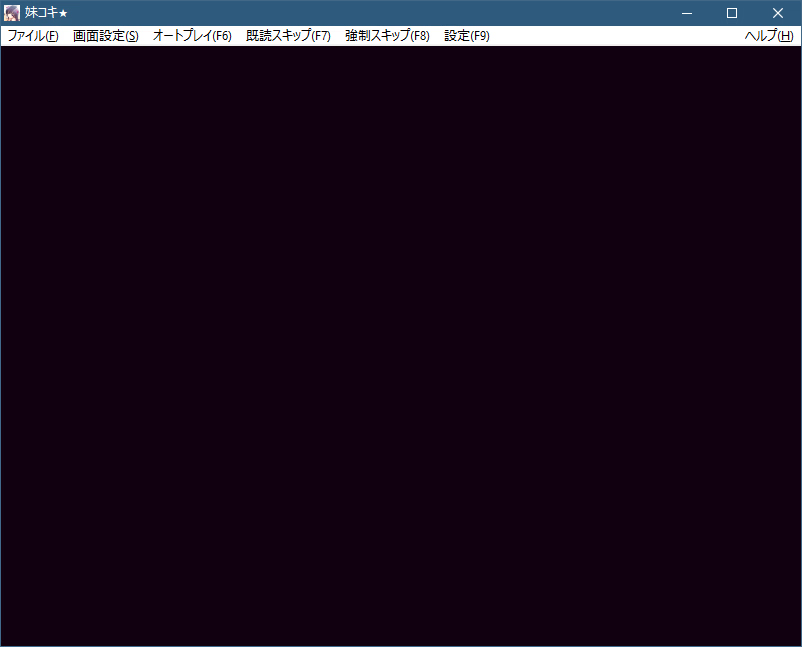
The Audio plays fine for me but the video is all black like so:
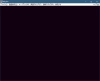
A lil note about this screenshot:
I will note that this is a screenshot taken after I resolved the issue of the video not playing in-game, the thing is that I'm for the life of me am unable to take any screenshots of the video playing in-game. Despite that, this is what it looks like when you don't have the DirectShow Compatiable MPEG-2 Codec installed.
So how do you fix it? The solution is super simple! You need to install LAV Filters which you can get here:
You must be registered to see the links
Download the Installer and when you get to the configuation screen, make sure to only toggle
"LAV Video (x86/x64)" in the options since we're only installed the codecs to enable MPEG-2 playback
in DirectShow Supported Programs!
After installing, the installer will ask if you want to open the LAV Video Configuation, select yes and open it!
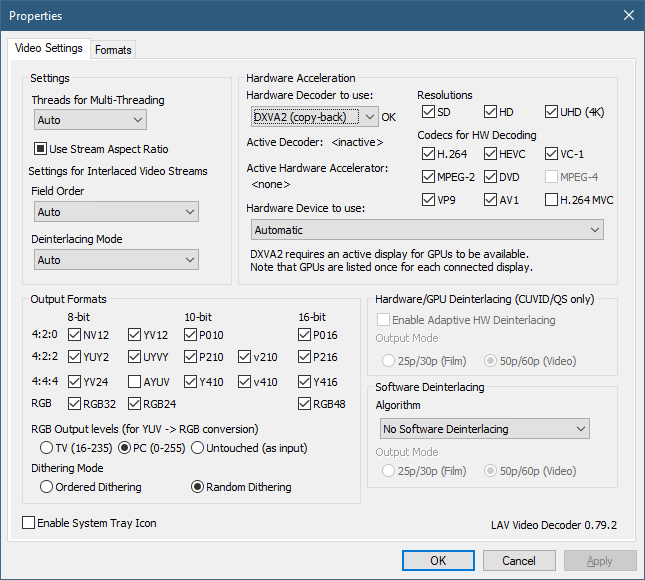
Than you'll be presented with this window:
Don't worry about all the options, but do enable "hardware accelation" by selecting Hardware Decoder, for me I choose the top option being DXVA2 (copy-back):
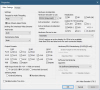
Everything else I didn't touch!
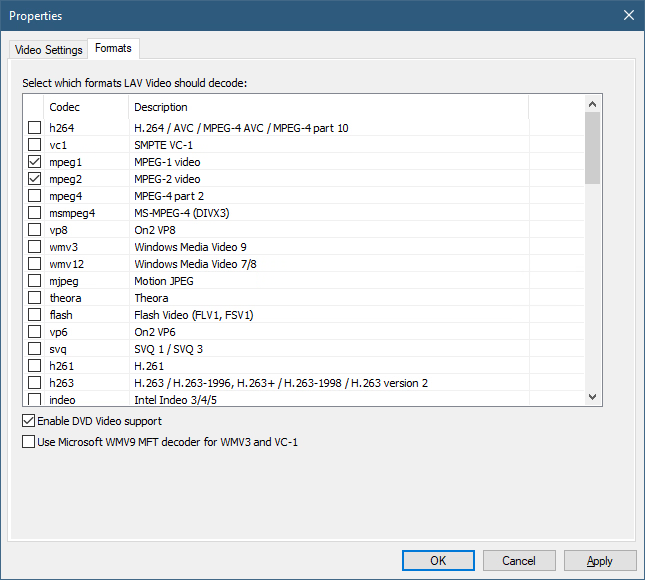
Now select the formats tab above and do the following, unselect everything except for MPEG-2! (You can also enable MPEG-1 if you want as well):
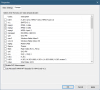
If everything looks right, press "OK" on the bottom and than re-open the game!
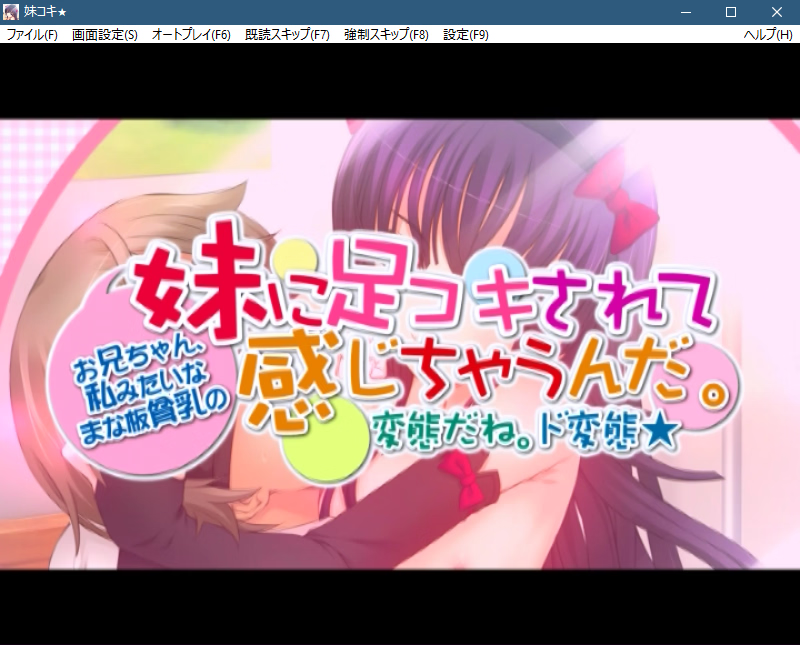
The opening should than play like in the screenshot!
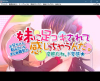
Another note about capturing the opening in the screenshot, it's not what it seems:
Like I said above in the Inline-Spoiler, it was impossible to take an screenshot of the opening playing as it appears as a black/purplish screen!
So...I opened the Op.mpg video directly in MPC-HC and disabled all of the UI (User Interface), than resized it to fix
the window of the game while it's running, take a full desktop screenshot and than crop it to make it appear as you
see in the screenshot above! The opening looks like this when running correctly btw, it's just was a hassle to capture a screenshot haha.
Hope this helps anyone out!
Though if you don't care about the opening, you can just ignore this and install the game and patch and have fun!
Thanks
vvf77235 for the translation! ^_^