RPG Maker text boxes are glitched

FunFun67

New Member
Oct 14, 2025
13
1
3
Hmm, damn, i'm not familiar with samsung notebooks, it seems you do are with an up-to-date version of windows 11, so i will list some generic things that can help:

1. Installing optional updates, go again into system info and in search bar at the top search something like 'optional updates' to click at show optional updates (something like that i assume, my system is in portuguese), and if available install the optional windows and drivers updates.

2. Press win + r and search 'devmgmt.msc' to open driver management, in the video adaptor open it, right click your adreno driver, update driver and auto search for updates.

3. Contact samsung support, send them a ticket with your notebook model tag, usually at the bottom side of it, i believe yours are a NP340XLA-K0ABR, but if not so the code will be similar, in the ticket ask them for the latest drivers for windows 11 home. (especially for the qualcomm adreno 618), so you can re-install your drivers safely, there are some in the web but i'm not up to the safes sites to download drivers nowadays.

4. Follow those steps for verify corrupted files in your system:


I would go with 4, 1 and 2 first since they are the most easy to do, number 3 is a good one but consumer support is a pain in the ass...
Good luck buddy.
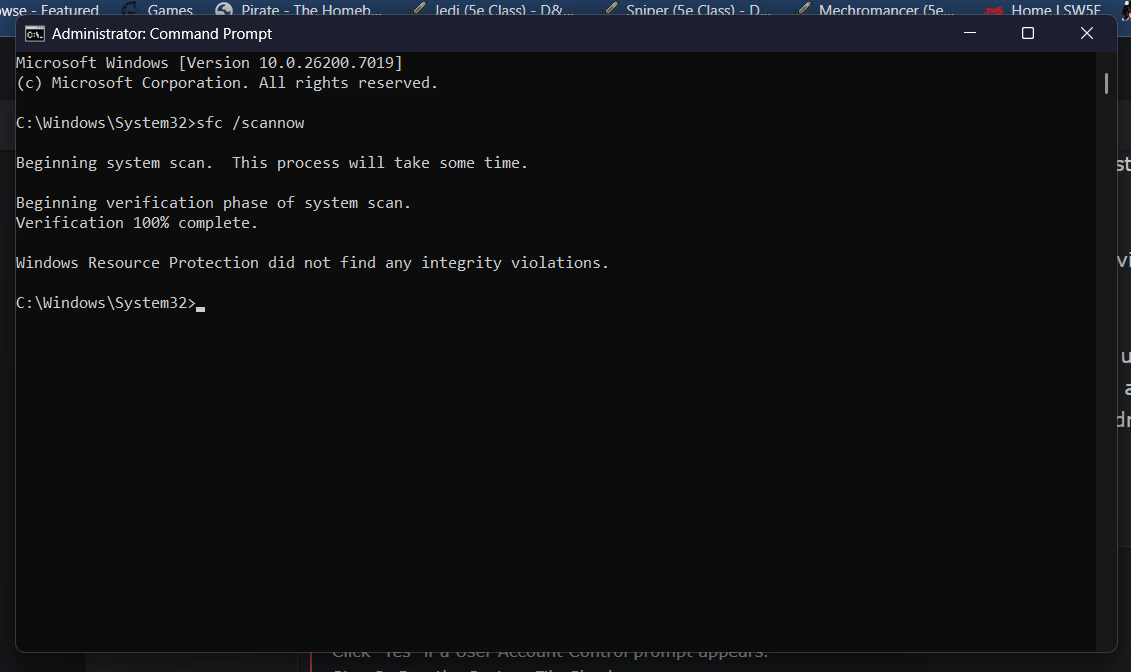
Sorry this took so long, I got burned out on this whole process. I did 1, didn't fix anything. I did 2, nothing changed. Now I just did 4, and this is what came back... What now :')? Screenshot 2025-11-01 213723.png
 

HELIO CESAR

Well-Known Member
May 30, 2018
1,466
3,303
378
Sorry this took so long, I got burned out on this whole process. I did 1, didn't fix anything. I did 2, nothing changed. Now I just did 4, and this is what came back... What now :')? View attachment 5400819
Damn buddy, that's a bummer :/
I'm getting out of options that i can give without direct contact or with a more direct communication.
There are some options like uninstalling the graphics card entirely and updating it manually, but i am not confident in trying to tell you to de it, even more so because we couldn't find your adreno 618 listed in the devices management panel, could show up if we select to show hidden devices maybe.

So this is what i got with Gemine for instructions about options to toggle and try for make it run, things like windows game mode and compatibility layers:
RPGMaker MZ games (which run on a platform called NW.js) rely on web-based rendering technologies. The black bars you're seeing are rendering artifacts, suggesting the graphics driver or a recent Windows update has broken how these games are drawn on your specific hardware.

Here are the most likely solutions, from easiest to most effective.


How to Fix the Rendering Issue


Start with step 1, as it's the most common culprit for this exact problem on Snapdragon devices.


1. Adjust Windows Graphics Settings (Most Likely Fix)


Windows 11 tries to "optimize" games, but on ARM devices, this can sometimes backfire. You need to force the game to run using the correct performance profile.

  1. Go to Settings > System > Display.
  2. Scroll down and click on Graphics.
  3. Under "Add an app," select Desktop app and click Browse.
  4. Navigate to the game's folder (e.g., "Slice of School") and select the main executable file (like Game.exe).
  5. Once the game is added to the list, click on it and select Options.
  6. In the pop-up, set the graphics preference to High performance (Qualcomm Adreno 618).
  7. Click Save and try launching the game again.


2. Disable Optimizations for Windowed Games


If step 1 doesn't work, this new Windows 11 feature is the next setting to try.

  1. Go back to the main Graphics settings page (Settings > System > Display > Graphics).
  2. At the top, click the link that says Change default graphics settings.
  3. Turn the toggle for Optimizations for windowed games to Off.
  4. Restart your computer and try the game again.


3. Update or Roll Back Your GPU Driver


Since this happened "suddenly," a recent driver update pushed through Windows Update is a prime suspect.

  • To Update:
    1. Go to Settings > Windows Update.
    2. Click Advanced options > Optional updates.
    3. If you see any "Driver updates" (especially for Qualcomm or graphics), install them and restart.
  • To Roll Back (If the problem started after an update):
    1. Right-click the Start button and select Device Manager.
    2. Expand the Display adapters section.
    3. Right-click on Qualcomm Adreno 618 and select Properties.
    4. Go to the Driver tab.
    5. If the button is available, click Roll Back Driver and follow the prompts.


4. Try Compatibility Mode


This is a simpler fix that can sometimes bypass rendering issues.

  1. Find the game's .exe file.
  2. Right-click it and select Properties.
  3. Go to the Compatibility tab.
  4. Check the box for "Run this program in compatibility mode for:" and select Windows 8.
  5. While you're there, also check the box for "Disable fullscreen optimizations".
  6. Click Apply and OK, then try launching the game.
I'd recommend trying these steps in order. The graphics performance setting (Step 1) is the most likely to resolve this specific issue on your Galaxy Book Go.

Would you like me to walk you through finding the game's .exe file?

If all fails there is still and samsung service lines.
Download any SFW RPGMaker MZ game (there are some indie forums or free ones at itch.io and steam) that you can give them ass example if needed and describe for them what is happening.
Or pray that someone randomly pops up here with a simple solution haha.

Good luck, hope you can fix it.