How I managed to make InvokeAI work with AMD Drivers on Windows
Hi everyone. Sometime ago I found this tutorial and got excited to try it out. Unfortunately, I stumbled into this roadblock:
View attachment 5528705
I looked into alternatives briefly (WSL, ZLUDA), but couldn't understand how to make it work. Honestly, I didn't even know what I was doing half the time. However, if you are in the same boat, I have good news: I managed to get it working now.
My Setup:
- RAM: 16GB
- GPU: AMD Radeon RX 6600 (8GB VRAM)
- OS: Windows 10
Disclaimer: This is not a formal tutorial, as I don't have the technical knowledge to explain what every step do and why it works. Instead, I will describe every step I took to get my first successfully generated image so you can try your luck. Proceed at your own risk.
Note: I am borrowing most of the steps from the "mind_slicer" guide on the Invoke Discord (bugs-and-support > AMD support on windows). If you're reading this, thank you, mind_slicer!
The Problem
InvokeAI uses CUDA (NVIDIA) or ROCm (AMD) to generate images. While CUDA is standard on Windows, ROCm has historically been Linux-only or difficult to configure on Windows.
The Solution
There are a few alternatives (Windows Subsystem for Linux, ZLUDA, etc.), but we will use
"The Rock" (AMD's native ROCm implementation for Windows) combined with specific community builds for RDNA2 cards.
Step-by-Step Guide
Part A: Basic Setup (Based on mind_slicer's guide)
- Check PowerShell Policy: Open PowerShell and type
Get-ExecutionPolicy. If it returns Restricted, run Set-ExecutionPolicy RemoteSigned and agree to the changes. This allows the Invoke scripts to run.
- Download the Launcher: Get the latest version from the official link:
You must be registered to see the links
- Install Invoke: Run the installer. Important: Do not install version 6.9.0; use 6.8.1. When asked "What GPU do you have?", choose AMD.
- Open Dev Console: Open the Invoke launcher and click "Launch Developer Console".
- Clean Up Torch: Run the following command to remove the default libraries:
uv pip uninstall torch torchaudio torchvision Minimize the launcher, but do not close it.
Part B: Installing ROCm & Torch
We are utilizing AMD's "The Rock" platform. You generally need to check the
You must be registered to see the links
to see if your architecture is supported (Green checkmarks mean you are good to go).
- If you have a newer card (e.g., RX 9070 XT / RDNA4): You can likely follow the official instructions on TheRock's GitHub to find the specific pip command for your architecture (e.g.,
gfx1201). It will look something like this (adapt for your specific card!): uv pip install --pre torch torchaudio torchvision --index-url https://rocm.nightlies.amd.com/v2/gfx120X-all/. After installing torch, you can jump to step 10.
- If you have an older card (like my RX 6600): My card (RDNA2 architecture) wasn't officially supported yet. However, I found a branch merging RDNA2 support, so it could be available in the near future. If you are in this scenario, follow these steps instead:
If using older card only:
6.
Update Python: Ensure you are running Python 3.12.10.
7.
Download Custom Builds: Go to
You must be registered to see the links
and download all seven files.
8.
Install ROCm: In the Invoke Dev Console, navigate (
cd) to the folder where you downloaded the files and run:
uv pip install "rocm-7.1.1.tar.gz" "rocm_sdk_libraries_gfx103x_all-7.1.1-py3-none-win_amd64.whl" "rocm_sdk_devel-7.1.1-py3-none-win_amd64.whl" "rocm_sdk_core-7.1.1-py3-none-win_amd64.whl"
9.
Install Torch: Once ROCm is done, install the Torch wheels:
uv pip install "torch-2.9.1+rocmsdk20251207-cp312-cp312-win_amd64.whl" "torchaudio-2.9.0+rocmsdk20251207-cp312-cp312-win_amd64.whl" "torchvision-0.24.0+rocmsdk20251207-cp312-cp312-win_amd64.whl"
10.
Finalize: Close the console and launch InvokeAI. The first launch (cold start) will take a long time. Ignore errors regarding ROCm or
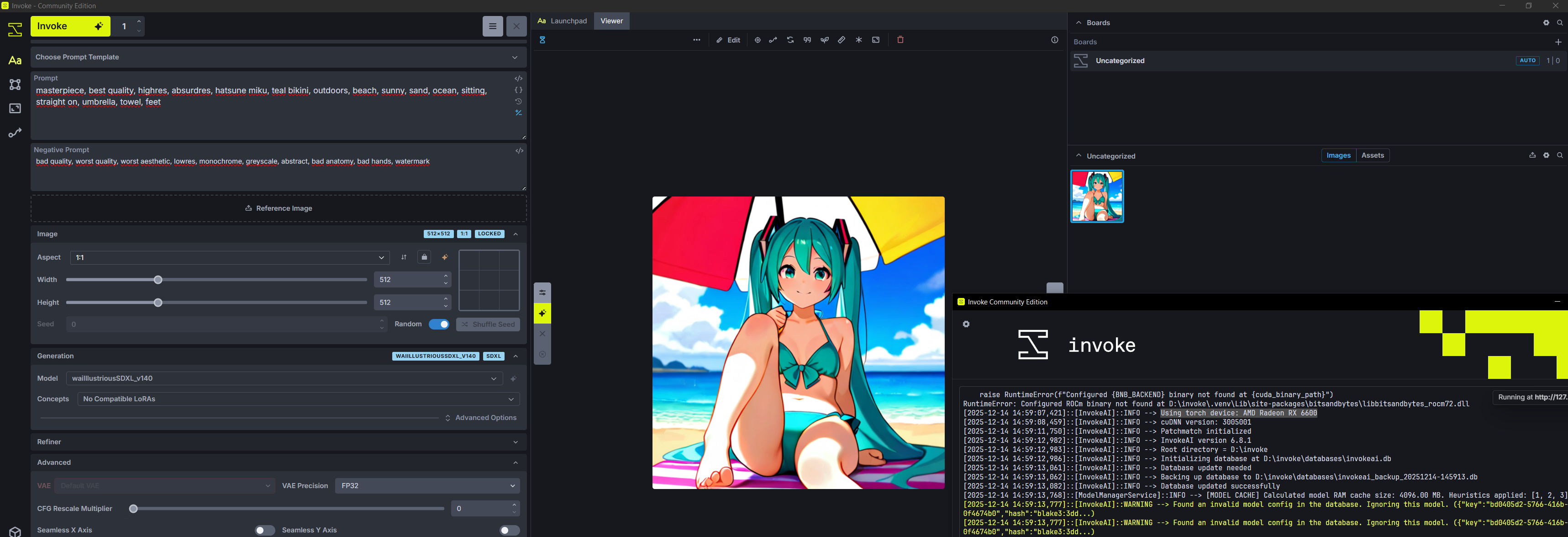
bitsandbytes in the logs. If you see "Using torch device: AMD Radeon RX 6600" — you win.
Optimizing Performance (Optional, I did not use it)
"The Rock" is under active development. You might encounter slow generation times or "hanging" during VAE Decode. To fix the "forever decode" issue and MIOpen conflicts:
- Make sure InvokeAI is closed.
- Go to
C:\Users\<YOUR_USERNAME>\. If you see a .miopen folder, delete it.
- Create a custom launch script to force a specific MIOpen mode. Open Notepad, paste the following, and save it as
invoke_launch_amd.bat (remote the ' from the at):
'@'echo off

REM Replace "D:\invoke" below with the actual path to your Invoke folder

start "InvokeAI" cmd /k "cd /d D:\invoke && call .venv\Scripts\activate.bat && set MIOPEN_FIND_MODE=2 && invokeai-web"

exit
Use this
.bat file to launch Invoke from now on.
Troubleshooting Common Issues
Besides the usual errors, here is how I fixed specific crashes:
1. Can't download/import a model
- Cause: Seems to be an issue with Invoke 6.9.0.
- Solution: Downgrade to 6.8.1 and repeat the installation steps.
2. Invoke crashes (closes) when generating an image
- Cause: Low storage on the C: drive. Even if Invoke is on D:, Windows uses the Pagefile (virtual memory) on the C: drive by default.
- Solution: I freed up 50GB on my C: drive. Alternatively, you can move your Pagefile to another drive.
- How to change Pagefile: Settings → System → About → Advanced system settings → Performance (Settings…) → Advanced → Virtual memory (Change…). Set C: to "No paging file" and your other drive to "System managed size".
3. The image renders as plain black or with artifacts
View attachment 5528739
- Solution: I did two things (not sure which fixed it, but try both):
- Freed up disk space (as mentioned above).
- Edited invokeai.yaml to better manage VRAM
enable_partial_loading: true

device_working_mem_gb: 4

keep_ram_copy_of_weights: false
The Result:
View attachment 5528690
That's it! I hope that my experience could help you set this up.
Good luck and hit Invoke discord channel if you need any help!