Mod Unity [Secret Flasher Manaka] Cosplay Loader Mod 2.2.1

5.00 star(s) 1 Vote

eltiachan

Member
Sep 2, 2023
148
217
111
And yep, this comment basically summed up my situation. And yea, I also don't really understand many of the variables in descriptor.json...
I fed the json file into GPT and requested an explanation on how to make the materials become transparent / semi-transparent. I followed the tweaks the AI suggested (such as using an alpha value less than 1) but it doesn't seem to produce the desirable results. (In one test the outfit turned magenta.) The only thing GPT suggested but I haven't tried is to provide an alpha map.

Not sure if any of this would help, just something to think about. (Yes, Skynet is coming, I know.)
 

biwajimadono

Member
Jul 27, 2021
175
229
53
And yep, this comment basically summed up my situation. And yea, I also don't really understand many of the variables in descriptor.json...
I tried to add shading by adjusting the contrast and brightness as a normal PNG image instead of a transparent one, but it's difficult.
Perhaps someone much more skilled than me can add beautiful shading.
 

biwajimadono

Member
Jul 27, 2021
175
229
53
I also tried making a camisole based on the succubus costume, but...
The shoulder straps kept slipping or disappearing.
The lines were too distorted.
The PNG image had beautiful curves, but they were distorted to fit Manaka's body.
I respect people who create textures professionally. 2025-12-12 05 01 26.png
 

ExoFifth

Newbie
Nov 26, 2023
15
49
97
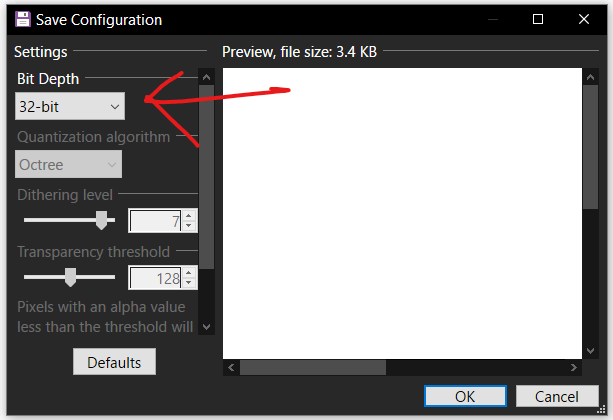
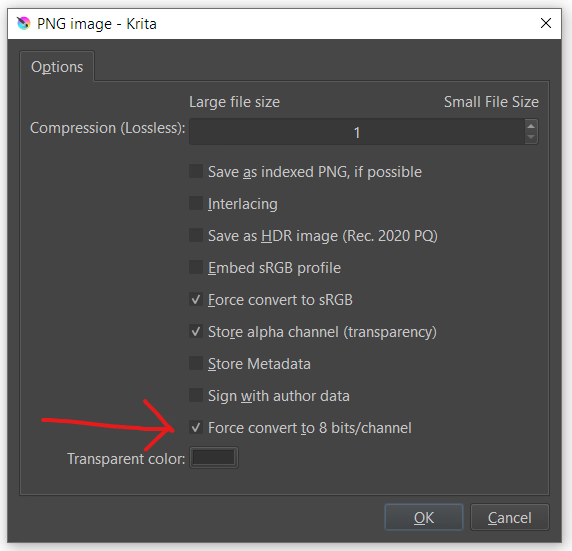
The materials loader appears unable to load PNG textures with a bit depth greater than 32. Some of the outfits shared so far have normal maps with a higher bit depth, in which case it appears to fall back to no normal map.

If you see an error that the texture format is unsupported, try re-exporting the relevant PNG with a bit depth of 32 (8 bits per channel). Examples of how to do that with a couple common tools:

Paint.net:
1765485674410.png

Krita:
1765485762960.png
 

ExoFifth

Newbie
Nov 26, 2023
15
49
97
I tried to add shading by adjusting the contrast and brightness as a normal PNG image instead of a transparent one, but it's difficult.
Perhaps someone much more skilled than me can add beautiful shading.
I downloaded it to have a look. The UnityToonShader is supposed to have transparency, but the transparency part wasn't included in the assetbundles. There's a different transparency shader that looks pretty good with some tweaking. Try this material descriptor.json:

JSON:
{
    "name": "Bukkake.Mat",
    "shader": "Hidden/lilToonTransparent",
 
 
    "textures": {
      "_MainTex": "Texture - Custom.png",
      "_BumpMap": "Normal.png",
      "_MatCapTex": "Texture - Custom.png",
      "_MatCapBumpMap": ""
    },
 
 
    "colors": {
        "_Color":                                    [1.800, 1.800, 1.800, 0.150],
        "_MatCapColor":                                [2.000, 2.000, 2.000, 1.000],
        "_EmissionColor":                            [2.000, 2.000, 2.000, 0.100],
        "_ReflectionColor":                            [2.000, 2.000, 2.000, 5.000]
    },
 
 
    "floats": {
        "_Invisible": 0,
        "_AsUnlit": 0,
        "_UseBumpMap": 1,
        "_UseMatCap": 1,
        "_UseReflection": 1,
        "_ApplyReflection": 1,
        "_UseEmission": 1,
        "_UseRim": 1,
        "_SpecularToon": 1,
        
        "_AlphaBoostFA": 1,
        
        "_BumpScale": 1,
        "_MatCapBumpScale": 1,
        
        "_Cutoff": 0.0,
        "_Smoothness": 1.0,
        "_Metallic": 0.7,
        "_Reflectance": 0.04,
        "_SpecularBlur": 0,
        "_MatCapLod": 0,
        
        "_TransparentMode": 2,
        
        "_SrcBlend": 1,
        "_DstBlend": 4,
        "_SrcBlendAlpha": 1,
        "_DstBlendAlpha": 10,
        "_BlendOp": 0,
        "_BlendOpAlpha": 0,
        "_SrcBlendFA": 1,
        "_DstBlendFA": 1,
        "_SrcBlendAlphaFA": 0,
        "_DstBlendAlphaFA": 1,
        "_BlendOpFA": 4,
        "_BlendOpAlphaFA": 4
    },
    
    "vectors": {
    },
 
 
    "keywords": [],
 
 
    "doubleSided": true,
    "transparent": true
  }
 

biwajimadono

Member
Jul 27, 2021
175
229
53
I downloaded it to have a look. The UnityToonShader is supposed to have transparency, but the transparency part wasn't included in the assetbundles. There's a different transparency shader that looks pretty good with some tweaking. Try this material descriptor.json:

JSON:
{
    "name": "Bukkake.Mat",
    "shader": "Hidden/lilToonTransparent",


    "textures": {
      "_MainTex": "Texture - Custom.png",
      "_BumpMap": "Normal.png",
      "_MatCapTex": "Texture - Custom.png",
      "_MatCapBumpMap": ""
    },


    "colors": {
        "_Color":                                    [1.800, 1.800, 1.800, 0.150],
        "_MatCapColor":                                [2.000, 2.000, 2.000, 1.000],
        "_EmissionColor":                            [2.000, 2.000, 2.000, 0.100],
        "_ReflectionColor":                            [2.000, 2.000, 2.000, 5.000]
    },


    "floats": {
        "_Invisible": 0,
        "_AsUnlit": 0,
        "_UseBumpMap": 1,
        "_UseMatCap": 1,
        "_UseReflection": 1,
        "_ApplyReflection": 1,
        "_UseEmission": 1,
        "_UseRim": 1,
        "_SpecularToon": 1,
     
        "_AlphaBoostFA": 1,
     
        "_BumpScale": 1,
        "_MatCapBumpScale": 1,
     
        "_Cutoff": 0.0,
        "_Smoothness": 1.0,
        "_Metallic": 0.7,
        "_Reflectance": 0.04,
        "_SpecularBlur": 0,
        "_MatCapLod": 0,
     
        "_TransparentMode": 2,
     
        "_SrcBlend": 1,
        "_DstBlend": 4,
        "_SrcBlendAlpha": 1,
        "_DstBlendAlpha": 10,
        "_BlendOp": 0,
        "_BlendOpAlpha": 0,
        "_SrcBlendFA": 1,
        "_DstBlendFA": 1,
        "_SrcBlendAlphaFA": 0,
        "_DstBlendAlphaFA": 1,
        "_BlendOpFA": 4,
        "_BlendOpAlphaFA": 4
    },
 
    "vectors": {
    },


    "keywords": [],


    "doubleSided": true,
    "transparent": true
  }
Amazing...
The texture changes depending on the light.
Yesterday I was using a painting program to paint a thin layer of skin color onto a sperm texture.
I was disappointed with the results.
People who can write code are like wizards.
2025-12-12 15 12 32.png

This costume might be the same.
Reverse Bunny
The texture changes depending on the light.
It's beautiful, but...could you make it a normal costume?
When you have time. If it's not too much trouble, please do so.
 
Last edited:

ExoFifth

Newbie
Nov 26, 2023
15
49
97
Amazing...
The texture changes depending on the light.
Yesterday I was using a painting program to paint a thin layer of skin color onto a sperm texture.
I was disappointed with the results.
People who can write code are like wizards.
View attachment 5520350

This costume might be the same.
Reverse Bunny
The texture changes depending on the light.
It's beautiful, but...could you make it a normal costume?
When you have time. If it's not too much trouble, please do so.
Here's a hopefully fixed version:
JSON:
{
    "name": "Bukkake.Mat",
    "shader": "Hidden/lilToonTransparent",
 
 
    "textures": {
      "_MainTex": "Texture - Custom.png",
      "_BumpMap": "Normal.png",
      "_MatCapTex": "Texture - Custom.png",
      "_MatCapBumpMap": ""
    },
 
 
    "colors": {
        "_Color":                                    [1.000, 1.000, 1.000, 0.800],
        "_MatCapColor":                                [1.000, 1.000, 1.000, 1.000],
        "_EmissionColor":                            [0.000, 0.000, 0.000, 0.000],
        "_ReflectionColor":                            [1.000, 1.000, 1.000, 1.000]
    },
 
 
    "floats": {
        "_Invisible": 0,
        "_AsUnlit": 0,
        "_UseBumpMap": 1,
        "_UseMatCap": 1,
        "_UseReflection": 1,
        "_ApplyReflection": 1,
        "_UseEmission": 1,
        "_UseRim": 1,
        "_SpecularToon": 1,
        
        "_AlphaBoostFA": 2,
        
        "_BumpScale": 1,
        "_MatCapBumpScale": 1,
        
        "_Cutoff": 0.0,
        "_Smoothness": 1.0,
        "_Metallic": 0.7,
        "_Reflectance": 0.04,
        "_SpecularBlur": 0,
        "_MatCapLod": 0,
        
        "_TransparentMode": 2,
        
        "_SrcBlend": 1,
        "_DstBlend": 10,
        "_SrcBlendAlpha": 1,
        "_DstBlendAlpha": 10,
        "_BlendOp": 0,
        "_BlendOpAlpha": 0,
        "_SrcBlendFA": 1,
        "_DstBlendFA": 1,
        "_SrcBlendAlphaFA": 0,
        "_DstBlendAlphaFA": 1,
        "_BlendOpFA": 4,
        "_BlendOpAlphaFA": 4
    },
    
    "vectors": {
    },
 
 
    "keywords": [],
 
 
    "doubleSided": true,
    "transparent": true
  }
 

LeoVincent69

Newbie
Aug 19, 2025
38
61
18
The materials loader appears unable to load PNG textures with a bit depth greater than 32. Some of the outfits shared so far have normal maps with a higher bit depth, in which case it appears to fall back to no normal map.

If you see an error that the texture format is unsupported, try re-exporting the relevant PNG with a bit depth of 32 (8 bits per channel). Examples of how to do that with a couple common tools:

Paint.net:
View attachment 5519204

Krita:
View attachment 5519208
I see, I assume it is related to the PNG decode failed/unsupported that I purposefully ignore in all of the outfits I exported, will fix that when I am free welp XD.
 

LeoVincent69

Newbie
Aug 19, 2025
38
61
18
Here's a hopefully fixed version:
JSON:
{
    "name": "Bukkake.Mat",
    "shader": "Hidden/lilToonTransparent",


    "textures": {
      "_MainTex": "Texture - Custom.png",
      "_BumpMap": "Normal.png",
      "_MatCapTex": "Texture - Custom.png",
      "_MatCapBumpMap": ""
    },


    "colors": {
        "_Color":                                    [1.000, 1.000, 1.000, 0.800],
        "_MatCapColor":                                [1.000, 1.000, 1.000, 1.000],
        "_EmissionColor":                            [0.000, 0.000, 0.000, 0.000],
        "_ReflectionColor":                            [1.000, 1.000, 1.000, 1.000]
    },


    "floats": {
        "_Invisible": 0,
        "_AsUnlit": 0,
        "_UseBumpMap": 1,
        "_UseMatCap": 1,
        "_UseReflection": 1,
        "_ApplyReflection": 1,
        "_UseEmission": 1,
        "_UseRim": 1,
        "_SpecularToon": 1,
      
        "_AlphaBoostFA": 2,
      
        "_BumpScale": 1,
        "_MatCapBumpScale": 1,
      
        "_Cutoff": 0.0,
        "_Smoothness": 1.0,
        "_Metallic": 0.7,
        "_Reflectance": 0.04,
        "_SpecularBlur": 0,
        "_MatCapLod": 0,
      
        "_TransparentMode": 2,
      
        "_SrcBlend": 1,
        "_DstBlend": 10,
        "_SrcBlendAlpha": 1,
        "_DstBlendAlpha": 10,
        "_BlendOp": 0,
        "_BlendOpAlpha": 0,
        "_SrcBlendFA": 1,
        "_DstBlendFA": 1,
        "_SrcBlendAlphaFA": 0,
        "_DstBlendAlphaFA": 1,
        "_BlendOpFA": 4,
        "_BlendOpAlphaFA": 4
    },
  
    "vectors": {
    },


    "keywords": [],


    "doubleSided": true,
    "transparent": true
  }
AND DANG! Thank you so much for the knowledge! I have 0 knowledge about shader so I never know about other existing shader, now I can refer to the descriptor.json file you share and play around with other outfits as well! Seriously, thank you very much.

(Edit: Now I know what I wanna do in my next free time hehehe)
 

eltiachan

Member
Sep 2, 2023
148
217
111
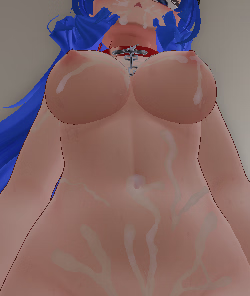
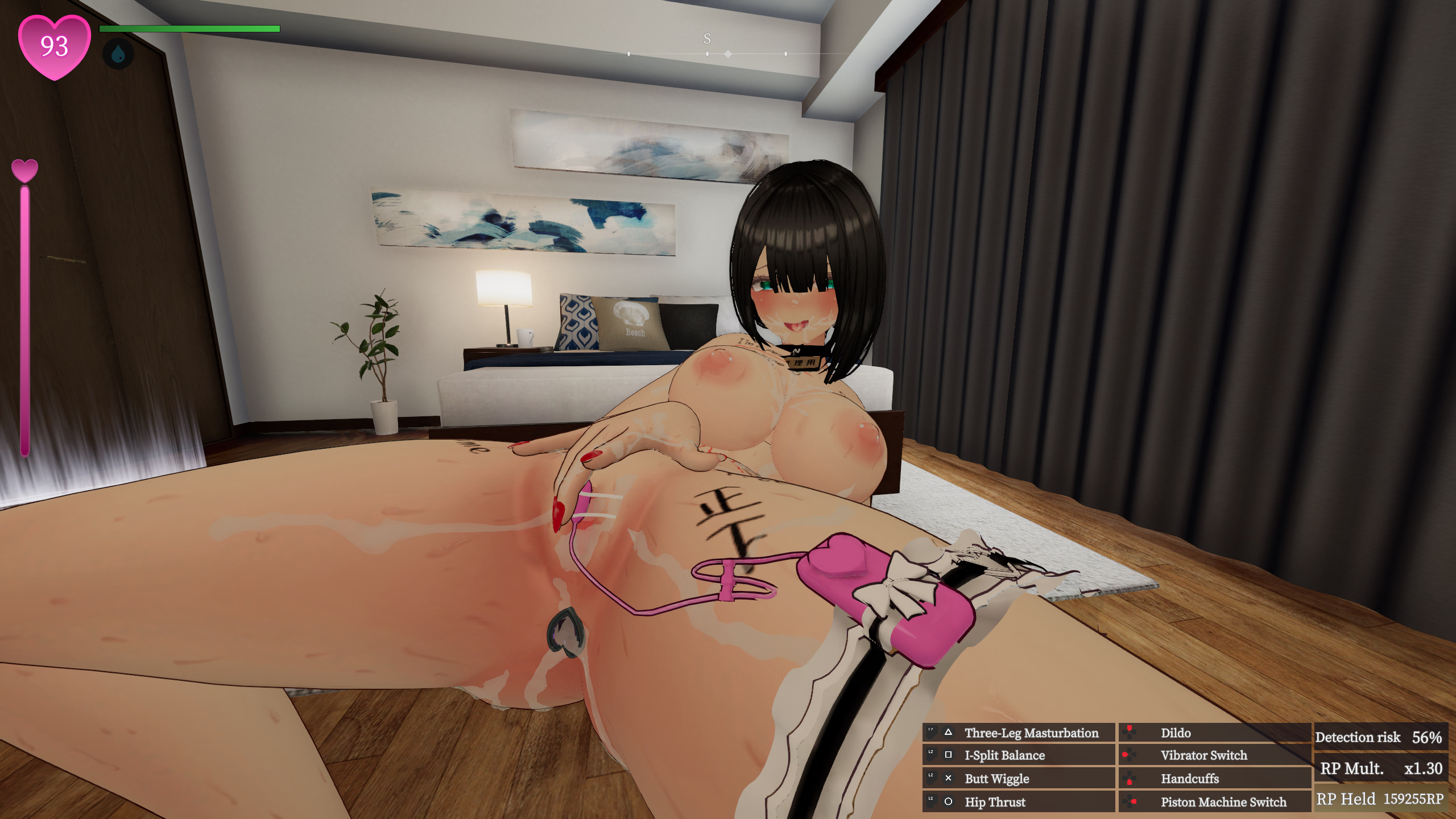
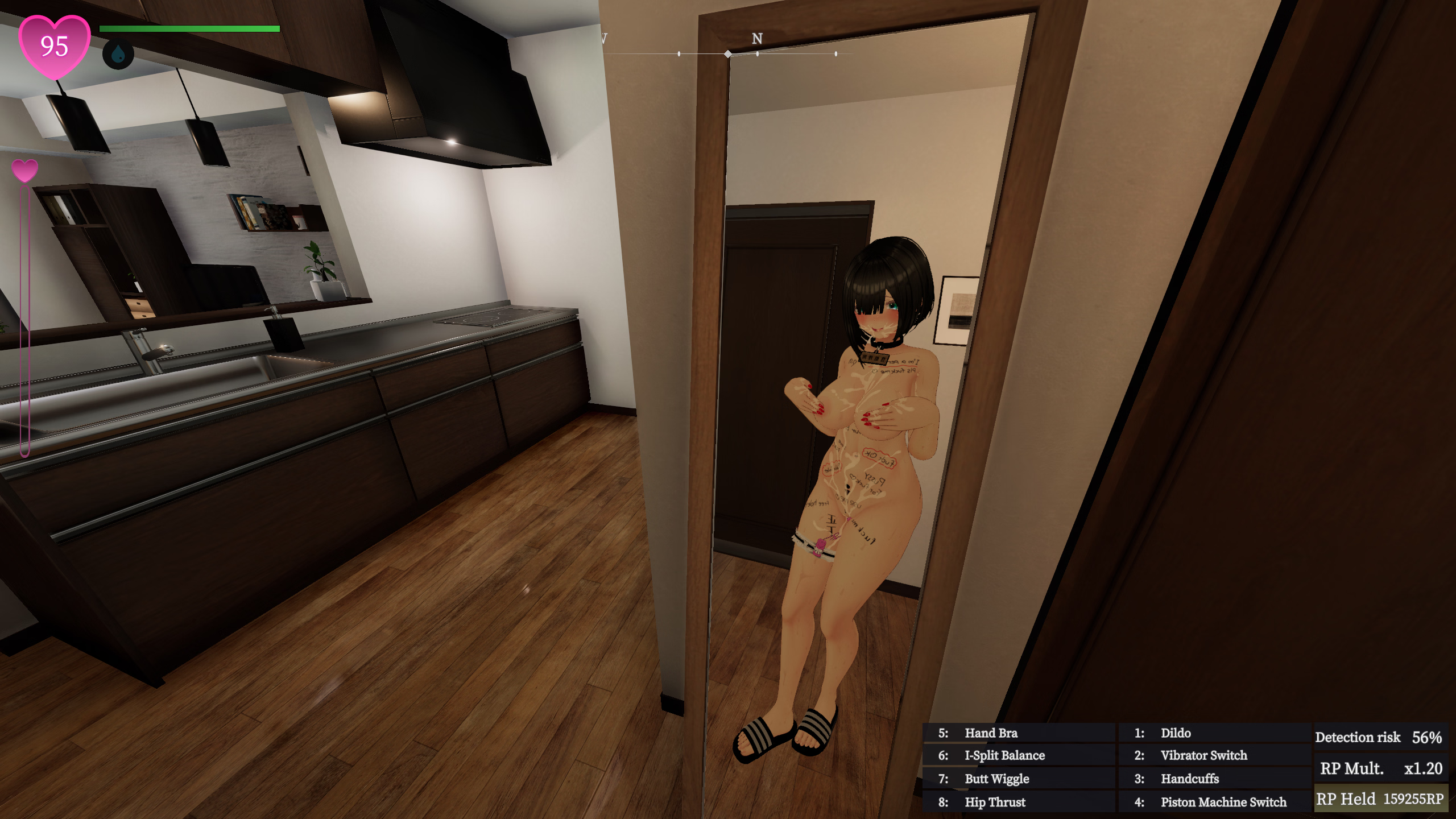
Attached is the Bukkake Cosplay (a.k.a. sperm outfit) that incorporates the changes by ExoFifth with the bit depth of Normal.png reduces to 32 bits. This is by no means final. Feel free to use this as a basis for future fine tuning or modding.

The pieces of the outfit have been categorized properly (Bukkake Face is categorized under Head, Bukkake Pussy under Genital, etc). This may cause conflict with existing Cosplay mods installed. Backup your save files before trying this out.

SecretFlasherManaka_2025_12_12_14_36_24_877.png SecretFlasherManaka_2025_12_12_14_41_24_049.png
 
Last edited:

ExoFifth

Newbie
Nov 26, 2023
15
49
97
If anyone wants it but doesn't have it, these are the shader definitions available to modders extracted from the game files. You can open the *.shader files in a text editor and view the name and assignable properties. For example, here's the Toon_ShadingGradeMap shader. You can see the name at the top, and a list of properties you can use in your material definitions under "Properties." Note the second argument showing what data type to classify each property.

Code:
Shader "UnityChanToonShader/Toon_ShadingGradeMap" {
    Properties {
        [HideInInspector] _simpleUI ("SimpleUI", Float) = 0
        [HideInInspector] _utsVersion ("Version", Float) = 2.08
        [HideInInspector] _utsTechnique ("Technique", Float) = 1
        [Enum(OFF,0,FRONT,1,BACK,2)] _CullMode ("Cull Mode", Float) = 2
        _MainTex ("BaseMap", 2D) = "white" {}
        [HideInInspector] _BaseMap ("BaseMap", 2D) = "white" {}
        _BaseColor ("BaseColor", Vector) = (1,1,1,1)
        [HideInInspector] _Color ("Color", Vector) = (1,1,1,1)
        [Toggle(_)] _Is_LightColor_Base ("Is_LightColor_Base", Float) = 1
        _1st_ShadeMap ("1st_ShadeMap", 2D) = "white" {}
        [Toggle(_)] _Use_BaseAs1st ("Use BaseMap as 1st_ShadeMap", Float) = 0
        _1st_ShadeColor ("1st_ShadeColor", Vector) = (1,1,1,1)
        [Toggle(_)] _Is_LightColor_1st_Shade ("Is_LightColor_1st_Shade", Float) = 1
        _2nd_ShadeMap ("2nd_ShadeMap", 2D) = "white" {}
        [Toggle(_)] _Use_1stAs2nd ("Use 1st_ShadeMap as 2nd_ShadeMap", Float) = 0
        _2nd_ShadeColor ("2nd_ShadeColor", Vector) = (1,1,1,1)
        [Toggle(_)] _Is_LightColor_2nd_Shade ("Is_LightColor_2nd_Shade", Float) = 1
        _NormalMap ("NormalMap", 2D) = "bump" {}
        _BumpScale ("Normal Scale", Range(0, 1)) = 1
        [Toggle(_)] _Is_NormalMapToBase ("Is_NormalMapToBase", Float) = 0
        [Toggle(_)] _Set_SystemShadowsToBase ("Set_SystemShadowsToBase", Float) = 1
        _Tweak_SystemShadowsLevel ("Tweak_SystemShadowsLevel", Range(-0.5, 0.5)) = 0
        [HideInInspector] _BaseColor_Step ("BaseColor_Step", Range(0, 1)) = 0.5
        [HideInInspector] _BaseShade_Feather ("Base/Shade_Feather", Range(0.0001, 1)) = 0.0001
        [HideInInspector] _ShadeColor_Step ("ShadeColor_Step", Range(0, 1)) = 0
        [HideInInspector] _1st2nd_Shades_Feather ("1st/2nd_Shades_Feather", Range(0.0001, 1)) = 0.0001
        _1st_ShadeColor_Step ("1st_ShadeColor_Step", Range(0, 1)) = 0.5
        _1st_ShadeColor_Feather ("1st_ShadeColor_Feather", Range(0.0001, 1)) = 0.0001
        _2nd_ShadeColor_Step ("2nd_ShadeColor_Step", Range(0, 1)) = 0
        _2nd_ShadeColor_Feather ("2nd_ShadeColor_Feather", Range(0.0001, 1)) = 0.0001
        _StepOffset ("Step_Offset (ForwardAdd Only)", Range(-0.5, 0.5)) = 0
        [Toggle(_)] _Is_Filter_HiCutPointLightColor ("PointLights HiCut_Filter (ForwardAdd Only)", Float) = 1
        _ShadingGradeMap ("ShadingGradeMap", 2D) = "white" {}
        _Tweak_ShadingGradeMapLevel ("Tweak_ShadingGradeMapLevel", Range(-0.5, 0.5)) = 0
        _BlurLevelSGM ("Blur Level of ShadingGradeMap", Range(0, 10)) = 0
        _HighColor ("HighColor", Vector) = (0,0,0,1)
        _HighColor_Tex ("HighColor_Tex", 2D) = "white" {}
        [Toggle(_)] _Is_LightColor_HighColor ("Is_LightColor_HighColor", Float) = 1
        [Toggle(_)] _Is_NormalMapToHighColor ("Is_NormalMapToHighColor", Float) = 0
        _HighColor_Power ("HighColor_Power", Range(0, 1)) = 0
        [Toggle(_)] _Is_SpecularToHighColor ("Is_SpecularToHighColor", Float) = 0
        [Toggle(_)] _Is_BlendAddToHiColor ("Is_BlendAddToHiColor", Float) = 0
        [Toggle(_)] _Is_UseTweakHighColorOnShadow ("Is_UseTweakHighColorOnShadow", Float) = 0
        _TweakHighColorOnShadow ("TweakHighColorOnShadow", Range(0, 1)) = 0
        _Set_HighColorMask ("Set_HighColorMask", 2D) = "white" {}
        _Tweak_HighColorMaskLevel ("Tweak_HighColorMaskLevel", Range(-1, 1)) = 0
        [Toggle(_)] _RimLight ("RimLight", Float) = 0
        _RimLightColor ("RimLightColor", Vector) = (1,1,1,1)
        [Toggle(_)] _Is_LightColor_RimLight ("Is_LightColor_RimLight", Float) = 1
        [Toggle(_)] _Is_NormalMapToRimLight ("Is_NormalMapToRimLight", Float) = 0
        _RimLight_Power ("RimLight_Power", Range(0, 1)) = 0.1
        _RimLight_InsideMask ("RimLight_InsideMask", Range(0.0001, 1)) = 0.0001
        [Toggle(_)] _RimLight_FeatherOff ("RimLight_FeatherOff", Float) = 0
        [Toggle(_)] _LightDirection_MaskOn ("LightDirection_MaskOn", Float) = 0
        _Tweak_LightDirection_MaskLevel ("Tweak_LightDirection_MaskLevel", Range(0, 0.5)) = 0
        [Toggle(_)] _Add_Antipodean_RimLight ("Add_Antipodean_RimLight", Float) = 0
        _Ap_RimLightColor ("Ap_RimLightColor", Vector) = (1,1,1,1)
        [Toggle(_)] _Is_LightColor_Ap_RimLight ("Is_LightColor_Ap_RimLight", Float) = 1
        _Ap_RimLight_Power ("Ap_RimLight_Power", Range(0, 1)) = 0.1
        [Toggle(_)] _Ap_RimLight_FeatherOff ("Ap_RimLight_FeatherOff", Float) = 0
        _Set_RimLightMask ("Set_RimLightMask", 2D) = "white" {}
        _Tweak_RimLightMaskLevel ("Tweak_RimLightMaskLevel", Range(-1, 1)) = 0
        [Toggle(_)] _MatCap ("MatCap", Float) = 0
        _MatCap_Sampler ("MatCap_Sampler", 2D) = "black" {}
        _BlurLevelMatcap ("Blur Level of MatCap_Sampler", Range(0, 10)) = 0
        _MatCapColor ("MatCapColor", Vector) = (1,1,1,1)
        [Toggle(_)] _Is_LightColor_MatCap ("Is_LightColor_MatCap", Float) = 1
        [Toggle(_)] _Is_BlendAddToMatCap ("Is_BlendAddToMatCap", Float) = 1
        _Tweak_MatCapUV ("Tweak_MatCapUV", Range(-0.5, 0.5)) = 0
        _Rotate_MatCapUV ("Rotate_MatCapUV", Range(-1, 1)) = 0
        [Toggle(_)] _CameraRolling_Stabilizer ("Activate CameraRolling_Stabilizer", Float) = 0
        [Toggle(_)] _Is_NormalMapForMatCap ("Is_NormalMapForMatCap", Float) = 0
        _NormalMapForMatCap ("NormalMapForMatCap", 2D) = "bump" {}
        _BumpScaleMatcap ("Scale for NormalMapforMatCap", Range(0, 1)) = 1
        _Rotate_NormalMapForMatCapUV ("Rotate_NormalMapForMatCapUV", Range(-1, 1)) = 0
        [Toggle(_)] _Is_UseTweakMatCapOnShadow ("Is_UseTweakMatCapOnShadow", Float) = 0
        _TweakMatCapOnShadow ("TweakMatCapOnShadow", Range(0, 1)) = 0
        _Set_MatcapMask ("Set_MatcapMask", 2D) = "white" {}
        _Tweak_MatcapMaskLevel ("Tweak_MatcapMaskLevel", Range(-1, 1)) = 0
        [Toggle(_)] _Inverse_MatcapMask ("Inverse_MatcapMask", Float) = 0
        [Toggle(_)] _Is_Ortho ("Orthographic Projection for MatCap", Float) = 0
        [KeywordEnum(SIMPLE,ANIMATION)] _EMISSIVE ("EMISSIVE MODE", Float) = 0
        _Emissive_Tex ("Emissive_Tex", 2D) = "white" {}
        [HDR] _Emissive_Color ("Emissive_Color", Vector) = (0,0,0,1)
        _Base_Speed ("Base_Speed", Float) = 0
        _Scroll_EmissiveU ("Scroll_EmissiveU", Range(-1, 1)) = 0
        _Scroll_EmissiveV ("Scroll_EmissiveV", Range(-1, 1)) = 0
        _Rotate_EmissiveUV ("Rotate_EmissiveUV", Float) = 0
        [Toggle(_)] _Is_PingPong_Base ("Is_PingPong_Base", Float) = 0
        [Toggle(_)] _Is_ColorShift ("Activate ColorShift", Float) = 0
        [HDR] _ColorShift ("ColorSift", Vector) = (0,0,0,1)
        _ColorShift_Speed ("ColorShift_Speed", Float) = 0
        [Toggle(_)] _Is_ViewShift ("Activate ViewShift", Float) = 0
        [HDR] _ViewShift ("ViewSift", Vector) = (0,0,0,1)
        [Toggle(_)] _Is_ViewCoord_Scroll ("Is_ViewCoord_Scroll", Float) = 0
        [KeywordEnum(NML,POS)] _OUTLINE ("OUTLINE MODE", Float) = 0
        _Outline_Width ("Outline_Width", Float) = 0
        _Farthest_Distance ("Farthest_Distance", Float) = 100
        _Nearest_Distance ("Nearest_Distance", Float) = 0.5
        _Outline_Sampler ("Outline_Sampler", 2D) = "white" {}
        _Outline_Color ("Outline_Color", Vector) = (0.5,0.5,0.5,1)
        [Toggle(_)] _Is_BlendBaseColor ("Is_BlendBaseColor", Float) = 0
        [Toggle(_)] _Is_LightColor_Outline ("Is_LightColor_Outline", Float) = 1
        [Toggle(_)] _Is_OutlineTex ("Is_OutlineTex", Float) = 0
        _OutlineTex ("OutlineTex", 2D) = "white" {}
        _Offset_Z ("Offset_Camera_Z", Float) = 0
        [Toggle(_)] _Is_BakedNormal ("Is_BakedNormal", Float) = 0
        _BakedNormal ("Baked Normal for Outline", 2D) = "white" {}
        _GI_Intensity ("GI_Intensity", Range(0, 1)) = 0
        _Unlit_Intensity ("Unlit_Intensity", Range(0.001, 4)) = 1
        [Toggle(_)] _Is_Filter_LightColor ("VRChat : SceneLights HiCut_Filter", Float) = 0
        [Toggle(_)] _Is_BLD ("Advanced : Activate Built-in Light Direction", Float) = 0
        _Offset_X_Axis_BLD (" Offset X-Axis (Built-in Light Direction)", Range(-1, 1)) = -0.05
        _Offset_Y_Axis_BLD (" Offset Y-Axis (Built-in Light Direction)", Range(-1, 1)) = 0.09
        [Toggle(_)] _Inverse_Z_Axis_BLD (" Inverse Z-Axis (Built-in Light Direction)", Float) = 1
    }
    //DummyShaderTextExporter
    SubShader{
        Tags { "RenderType"="Opaque" }
        LOD 200

        Pass
        {
            HLSLPROGRAM
            #pragma vertex vert
            #pragma fragment frag

            float4x4 unity_MatrixMVP;

            struct Vertex_Stage_Input
            {
                float3 pos : POSITION;
            };

            struct Vertex_Stage_Output
            {
                float4 pos : SV_POSITION;
            };

            Vertex_Stage_Output vert(Vertex_Stage_Input input)
            {
                Vertex_Stage_Output output;
                output.pos = mul(unity_MatrixMVP, float4(input.pos, 1.0));
                return output;
            }

            Texture2D<float4> _MainTex;
            SamplerState sampler_MainTex;
            float4 _Color;

            struct Fragment_Stage_Input
            {
                float2 uv : TEXCOORD0;
            };

            float4 frag(Fragment_Stage_Input input) : SV_TARGET
            {
                return _MainTex.Sample(sampler_MainTex, float2(input.uv.x, input.uv.y)) * _Color;
            }

            ENDHLSL
        }
    }
    Fallback "Legacy Shaders/VertexLit"
    //CustomEditor "UnityChan.UTS2GUI"
}

 

ousawa007

Newbie
Apr 3, 2022
30
11
18
Attached is the Bukkake Cosplay (a.k.a. sperm outfit) that incorporates the changes by ExoFifth with the bit depth of Normal.png reduces to 32 bits. This is by no means final. Feel free to use this as a basis for future fine tuning or modding.

The pieces of the outfit have been categorized properly (Bukkake Face is categorized under Head, Bukkake Pussy under Genital, etc). This may cause conflict with existing Cosplay mods installed. Backup your save files before trying this out.

View attachment 5521763 View attachment 5521764
aaagggggh i wanna try it out!
im gonna cut my save file out!!
 
  • Like
Reactions: mistersodacan

mistersodacan

Newbie
Jul 29, 2017
36
55
28
Attached is the Bukkake Cosplay (a.k.a. sperm outfit) that incorporates the changes by ExoFifth with the bit depth of Normal.png reduces to 32 bits. This is by no means final. Feel free to use this as a basis for future fine tuning or modding.

The pieces of the outfit have been categorized properly (Bukkake Face is categorized under Head, Bukkake Pussy under Genital, etc). This may cause conflict with existing Cosplay mods installed. Backup your save files before trying this out.

View attachment 5521763 View attachment 5521764
Amazing work. This is the only cosplay I ended up using, so having such a better version of it feels like Christmas came early. The fact that it was a collaborative effort is even better.
 

useruser9527

New Member
Dec 2, 2025
5
1
3
Shared by LeoVincent69.

The "Bukkake" in this post is it.

If you're just looking for the materials, this is it.
Thank you, I have started working, but due to my incomplete understanding of how texture works, the modified results are not satisfactory. How to make semen look equally good during the day and night is also a problem
 

LeoVincent69

Newbie
Aug 19, 2025
38
61
18
The materials used in the game are 1024x1024.
You may not need a size of 2048x2048.
I've reduced the additional costumes to 512x512, and it looks fine.
The materials loader appears unable to load PNG textures with a bit depth greater than 32. Some of the outfits shared so far have normal maps with a higher bit depth, in which case it appears to fall back to no normal map.

If you see an error that the texture format is unsupported, try re-exporting the relevant PNG with a bit depth of 32 (8 bits per channel). Examples of how to do that with a couple common tools:

Paint.net:
View attachment 5519204

Krita:
View attachment 5519208
Updated most (almost all...) ModMaterials folder, reduced all outfits texture and normal into 1024x1024 pixel with 32 bit depth or less. So far I don't have any PNG file decode error anymore in my BepInEx.

(Edit:
Just wanna share some funny thing, I didn't realize almost all of the outfits texture and normal is 2048x2048, some even go up to 4096x4096, after downscaling all those, my Mega folder went from 1.3GB to 863MB hahahaha XD
)

Attached is the Bukkake Cosplay (a.k.a. sperm outfit) that incorporates the changes by ExoFifth with the bit depth of Normal.png reduces to 32 bits. This is by no means final. Feel free to use this as a basis for future fine tuning or modding.

The pieces of the outfit have been categorized properly (Bukkake Face is categorized under Head, Bukkake Pussy under Genital, etc). This may cause conflict with existing Cosplay mods installed. Backup your save files before trying this out.

View attachment 5521763 View attachment 5521764
Removed my original Bukkake outfit and replaced it with the one shared by eltiachan, credit given to eltiachan, ExoFifth, and biwajimadono. Seriously, thank all three of you for all the help that make transparent outfit work. I hope I don't miss out anyone throughout this journey...

I also tried to make Slime outfit shared by biwajimadono slightly transparent hahaha XD.

I will post the Mega link here again ( ) in case anyone want to download any outfits. Maybe I should put the Mega link in like the little footnote of my comment so it would be easier to access hahaha. Because all I know is my Mega link is still actively been shared and mentioned by biwajimadono. Thank man XD.
 
Last edited:
5.00 star(s) 1 Vote